
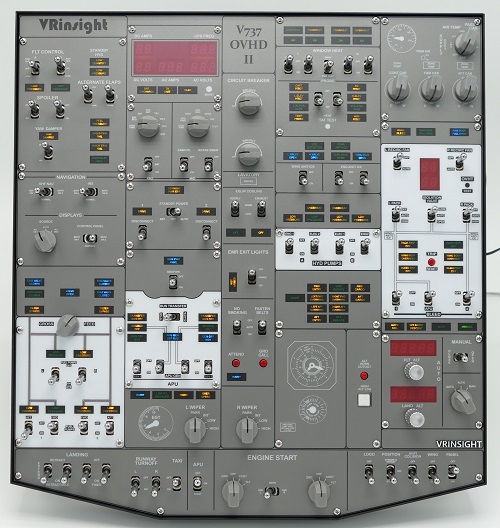


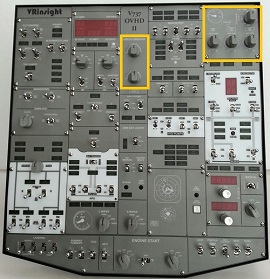
Inside the yellow box is a dummy switch.

VESA mounting holes (VESA 100) to use the monitor bracket. It can be installed at the desired location using the computer monitor arm.
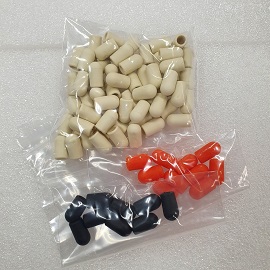
Rubber Switch Cap

Installation Example (Sep. 2025, Australian Customer)
Features
* Full functional inputs:
70 toggle
switches,
9 Rotary switches,
2 Rotary encoders
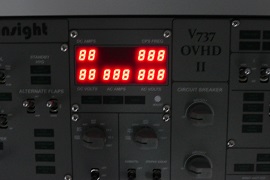
* All switchable 96-annunciators
* 7-Segment display for
Flight ALT, Landing ALT,
AC/DC Electric variables and duct flow
* USB 2.0 compliant
connection
for control interface
* End cap set : Plastic Black, Red and White color
* Install the overhead : Adjustable single computer monitor arm is available.
* It supports iFly 737NG & PMDG 737NGX in FSX
* It supports PMDG 737NGX in P3Dv4
* It supports MSFS2020 with Spadnext program.
Below is our customer's review of use.
" I used your software to do an
initial test
to make sure everything was working
before I finish setting it up for my first flight.
I then used Spad to load a profile
for the
PMDG 737 in MSFS.
It worked perfectly.
I use a snippet,
which is what they call a
profile
for specific devices.
The number is 6362.
It can be searched
from the
online snippets section.
With this profile everything works on the panel
with
the PMDG 737 in MSFS."
How to install with SPAD
1. Install or upgrade to the ‘Complete’ version of
SPAD.neXt
https://www.spadnext.com
2. Start MSFS 2020 as usual except for SPAD.
Select a World Map location and click
Ready to fly.
3. Open Device Manager in Control Panel
and expand the Ports (COM & LPT)
section.
4. Connect the 737 overhead panel to a USB port.
Find the new port number
under the Ports (COM & LPT) section.
Should show ‘USB Serial Port (COMxx)’
5. Start SPAD.
Go to Settings, Devices, Serial Devices
6. Click Add New Device.
Select the new Com port.
Select VRinsight as the protocol,
then OK.
Click the Save button and close SPAD.
7. Restart SPAD.
The message stating
“Turn Power Switch on the device off,
Wait 2
seconds, and turn back on”
should appear. Do as it says.
8. Go to the panel section
and you should see V737H (COMXX).
9. Click on any button
and load the online snippet 6362
and the panel should be
active.
10. If you do not receive the message
“Turn Power Switch on …”
or the panel is not
active,
close everything and reboot the computer,
then reload FS and SPAD.
Customer Review:
https://www.youtube.com/watch?v=X473wvDknMw
https://www.youtube.com/watch?v=Gbri7UHSmh0
https://www.youtube.com/watch?v=5KVZpQMNHmc
* It is compatible with
Microsoft Windows 7 or newer
* Dimension: Width: 41.5cm / 16.3inch,
Height: 4cm
/ 1.6inch,
Length: 44.5cm / 17.5inch
* Weight : 7Kg
* One year warrant
* C/S Center e-mail
: vrinsight101@gmail.com
* Please refer to the
manual and install software for V737 Overhead :